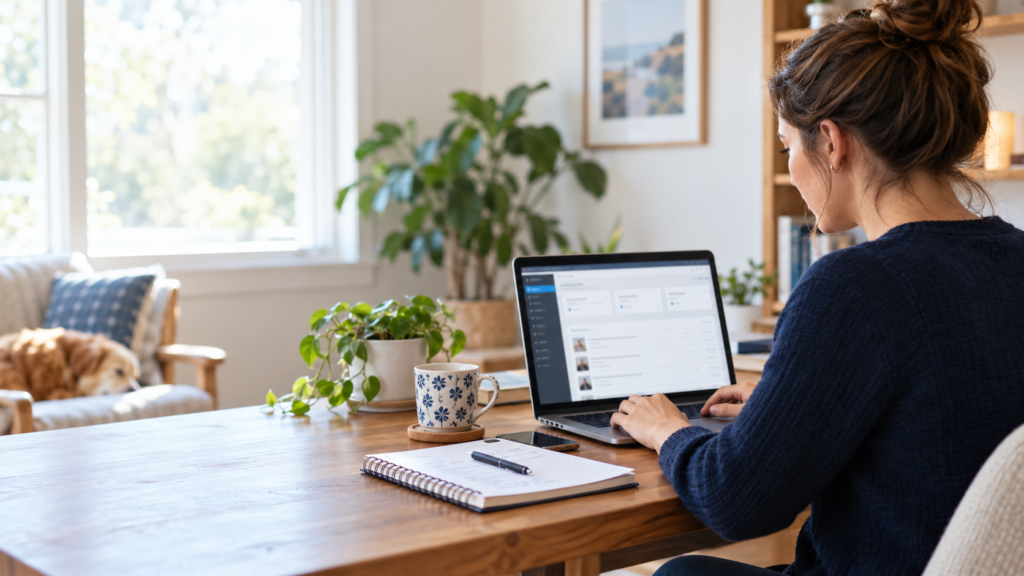
A WordPress site checkup can help you catch small issues before they turn into a long maintenance list. Old drafts, images without alternative text, broken links, and performance concerns are easier to review when you check your site regularly.
You don’t need to inspect everything every day. Set aside a little time once a week to review your site’s health, content, media, and basic performance signals. RDDevLabs Smart Dashboard’s free plugin brings several of these checks into one WordPress administration workspace. View RDDevLabs Smart Dashboard on WordPress.org.
What to include in a WordPress site checkup
Review site health
Start with the WordPress Site Health summary. Review any recommendations or issues and decide whether they need follow-up. Site Health is a useful starting point, but it doesn’t replace a full security, backup, or performance plan.
Look through old drafts and thin content
Check for older drafts and posts or pages that appear to have very little content. Some may be notes you still plan to finish; others might be outdated pages that need an update.
Don’t delete content just because it appears in a review. Open the relevant item, decide what it needs, and make changes through WordPress using your normal workflow.
Check your images
Look for images missing alternative text and files that are unusually large. Alternative text should describe an image’s purpose when that information matters to the page. Large files may be worth resizing or compressing.
A dashboard check helps you find images to review. You choose what to change and can confirm the result on the page where the image appears.
Run a manual broken-link check
Links can stop working when a page moves or an external resource changes. Run a manual broken-link check on published posts and pages, then review the reported links.
A failed request doesn’t always mean a link is permanently broken. A destination might be temporarily unavailable, so check it yourself before changing or removing the link.
Review performance and database summaries
Include basic performance signals in your WordPress site checkup, such as PHP and memory limits, HTTPS, caching signals, and WordPress cron configuration. You can also review database summaries for items such as revisions, spam comments, and transients.
These checks point out areas to investigate. They don’t automatically optimize your website or clean up your database, so review each recommendation before taking action.
How to run a WordPress site checkup each week
Keep the routine simple:
- Open your dashboard and review site health.
- Look at older drafts and pages that may need attention.
- Check image warnings and inspect the affected media.
- Run the manual broken-link check.
- Note any performance or database items to follow up on.
- Revisit your list next week and mark completed work.
You can use WordPress dashboard notes or a separate task list to keep track of follow-ups. Start with the items that matter most to your visitors, such as outdated information or a link on an important page.
For more performance guidance, read 10 WordPress Mistakes That Slow Down Your Website.
A regular WordPress site checkup gives you a clearer view of what needs attention without turning maintenance into a daily chore. RDDevLabs Smart Dashboard’s free version brings site health summaries, content and image checks, manual link checks, and other administration information together in one workspace. You stay in control of the changes and can work through them at a pace that fits your site.
Keep a record of each WordPress site checkup
A short maintenance record helps you remember what you reviewed and what still needs attention. Note the date, the issue you found, and the next step. For example, you might write down that an older page needs updated information, an image needs better alternative text, or a link needs another check.
Keep the list focused on actions you can complete. You don’t need to record every normal site detail or fix everything in one session. When you return for the next WordPress site checkup, review the open items first, mark completed work, and add any new findings. This simple habit makes it easier to see progress and reduces the chance that useful follow-up work gets forgotten.